Contents
- Index
Assigning Components on Reservations
The Tour Components Tab is where you assign tour components that a traveler is selecting.
The only available components for a reservation are the Tour Components you set up in the Tour Form on the Tour Components tab.
You can add any component to a reservation, but only components with a cost assigned appear on the traveler's invoice .
Note: Assign components per person so that Component reports are accurate.
It is best to assign components per person, rather than assigning "# of item" on the paying travelers reservation form. By assigning two items, the "math" will be correct, but when using the component list or table report only one traveler will appear and your list will be off. Also, if you assign components per traveler, should one cancel you know they will be dropped off component lists.
Field Definitions of Components on Reservation Form:
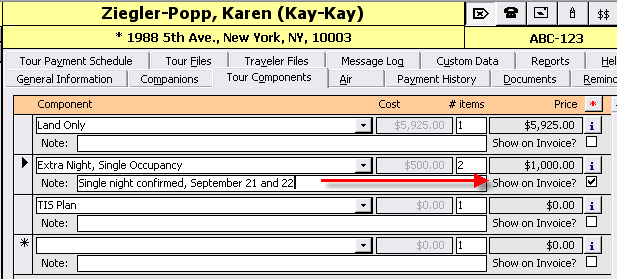
1. Component Name: The components available on this form have been set up on the Tour Components tab.
2. Cost: the cost will automatically match the cost entered on the Tour info form. Users may override this cost if they wish to assign a special price to this reservation. Note that there are permission settings available to control the assignments of pricing. See setting permission to find out how to allow or forbid the changing of a price for a component on the reservation form.
3. Item: This is the number sold. While you will always want to assign components to the appropriate person, rather than using the item number to say two "land only".) You may use the item field for things like Extra Hotel Nights, or other add-ons.
4. Price: This grey field is a calculated field = $ Cost x # of items.
5. Note: you may store a note to explain the component price or component itself. If your component is extra night, the note might say "Single night confirmed, September 21 and 22". If the component is a room upgrade, user may use the note field to describe the accommodations, "Additional 300 sq feet, extra bath and ocean views." If you sell Insurance, some users like to use this field to store the Insurance Policy Number.
6. Show [note] on invoice?: This box, if checked, tells ViaTour to display the component note on the invoice. Sometime you will not want a note displayed.
Related Topics:
Component Naming
Batch Update Component Prices on Reservations
Batch Add Components to Selected Tours
Locking Component Prices
Components, Field Definitions
Setting up a Travelers "Bill To"
Components, Field Definitions
Component Reports and Brief Name